
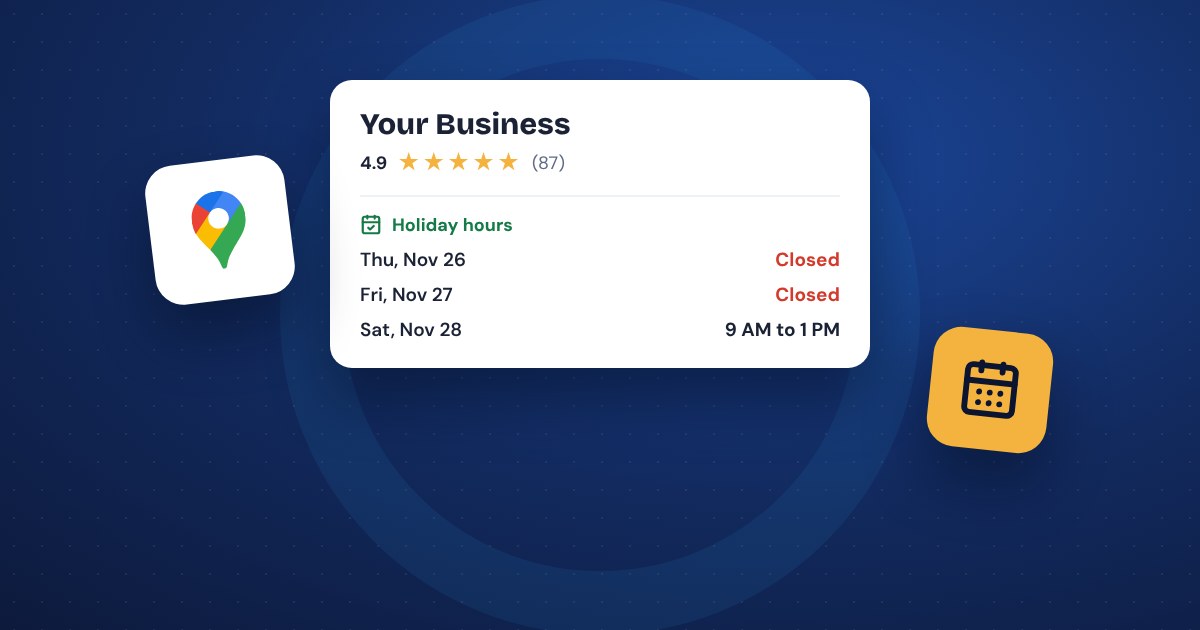
To set holiday hours, add special hours for each day you close or change your hours in your Google Business Profile, then make the same change on Bing Places, Apple Business Connect, your website, your Facebook page, your voicemail and your email auto-reply. It takes about 20 minutes, and it's best done a week or two before the holiday.
Why holiday hours matter
Most customers check Google before they call or drive over. If Google says you're open and you're not, they find a locked door, and many of them won't try again. If you haven't confirmed your hours for a holiday, Google may also show a note that your hours might be different, which makes people unsure whether to bother.
Google recommends confirming your hours for official holidays even when they're the same as usual. That tells customers the hours they see are accurate.
Set holiday hours on Google
Google calls these special hours. They replace your regular hours on the dates you pick, and your regular hours come back on their own afterward.
- First, go to business.google.com and open your Business Profile.
- Select Edit profile, then Hours.
- Next to Special hours, select the edit (pencil) icon.
- Pick a date. Google usually suggests the upcoming holidays, or you can add your own date.
- Closed that day? Leave Closed checked. Open with different hours? Uncheck Closed and enter your hours.
- Repeat for each date, then select Save.
A few things to know:
- Special hours only show if your profile is set to Open with main hours.
- They're for changes of up to 6 days in a row. If you'll be closed for 7 days or more, Google says to mark the business as Temporarily closed instead, and to reopen it when you're back.
- Special hours replace the whole day. If you're open in the morning and closed after noon, enter the morning hours.
- Hours that run past midnight need two entries, one for each date.
If your profile isn't fully set up, our guide to optimizing your Google Business Profile walks through the rest.
Bing Places and Apple Maps
Google gets most of the searches, but plenty of people use Bing and Apple Maps, including anyone who asks Siri for directions.
- Bing Places: sign in at bingplaces.com, open your listing and add special hours for the dates that change.
- Apple Business Connect: sign in at businessconnect.apple.com, open your location and add special hours for the dates that change.
Give both a few days to show up. Updates on Bing and Apple can take longer than on Google, so don't leave these for the day before.
Your website
Your website should match what Google says. Two quick changes cover it:
- A short banner at the top of every page, such as "Holiday hours: closed Thursday, Nov 26 and Friday, Nov 27."
- The same dates on your contact page, next to your regular hours.
If your website lists your hours in its code for search engines, update those too, or ask whoever manages the site. Then set a reminder to take the banner down when you're back.
Facebook and Instagram
Facebook pages have a place for regular hours and a way to mark the page temporarily closed, but they don't handle one-off holiday dates the way Google does. The simplest fix:
- Post your holiday schedule and pin it to the top of your Facebook page.
- Share the same post on Instagram, or add it as a story or a highlight.
- If you're closed for a week or more, update your page hours or mark the page temporarily closed, and change it back when you reopen.
Phone and email
Customers who call or email need the same answer. Record a short holiday voicemail and turn on an auto-reply for the days you're out.
Here's an auto-reply you can copy:
"Thanks for your message. We're closed Thursday, Nov 26 and Friday, Nov 27 for Thanksgiving, and we'll reply when we're back on Monday, Nov 30. For anything urgent, call (your number)."
And a voicemail script:
"You've reached (business name). We're closed for the holiday through (date) and back on (date). Leave a message and we'll call you back then."
After the holidays
Google's special hours end on their own, but everything else needs a quick check when you're back:
- Take down the website banner.
- Switch off the auto-reply and change the voicemail back.
- Unpin the holiday post.
- If you marked your Google profile or Facebook page temporarily closed, reopen it.
- Search for your business on Google and Apple Maps and make sure the regular hours show.
The 20-minute checklist
- Google Business Profile: special hours for each date
- Bing Places: special hours
- Apple Business Connect: special hours
- Website: banner and contact page
- Facebook: pinned post, and Instagram post or story
- Phone: holiday voicemail
- Email: auto-reply with your return date
- When you're back: undo the temporary changes
Common questions
How far ahead can I set holiday hours? On Google, you can add special hours as far ahead as you like, and they kick in on the right dates. Setting everything a week or two early gives Bing and Apple time to catch up.
We work by appointment and don't keep regular hours. Does this matter? If your listings show hours at all, yes. Anyone who sees "Open" on a day you're away will expect an answer. Confirm the holiday dates the same way.
Should I mark my business temporarily closed for a long holiday break? Only if you're closed for 7 days or more. For shorter closures, special hours are the right tool, and they switch back on their own.
If you'd like a second pair of eyes on how your business shows up on Google, our free website and Google checkup covers your hours, profile and website in one short report.
The short version
- Add special hours on Google for every day that changes, a week or two ahead.
- Make the same change on Bing Places and Apple Business Connect.
- Put a banner on your website and pin a post on Facebook.
- Record a holiday voicemail and set an email auto-reply.
- When you're back, undo the temporary changes and check that your regular hours show.