
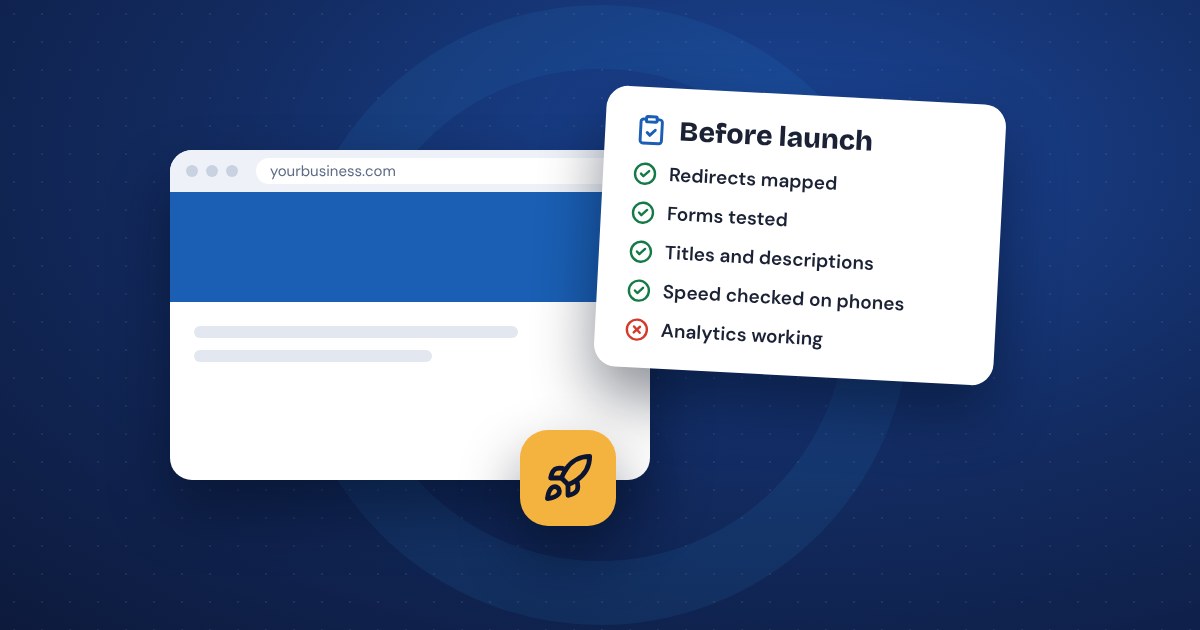
Before you relaunch a redesigned website, check that every page and link works, every old address redirects, every form actually delivers to someone's inbox, tracking is recording visits, and the site works on a phone. Then keep checking for the first week. Most launch problems are small things nobody tested, like a contact form that sends to an old email address.
Use this website redesign checklist on the staging copy before launch, then again on the live site right after.
Content and page list
Start with what's on the site. It's easy to lose something in the shuffle.
- Every page from the old site is either on the new site, redirected or deliberately removed.
- Your phone number, address, hours and email are correct on every page, including the footer and contact page.
- Prices, services and staff names are current.
- No placeholder text, "lorem ipsum", test pages or sample products left over.
- Every page has a title and a short description written for it, not the default from a template.
- Spelling checked. Read the main pages out loud or have someone else read them.
- Photos are your own where it matters, sized for the web and given short descriptions.
- Privacy policy and any other required pages are linked in the footer.
- The copyright year in the footer is current.
Redirects from old addresses
If any page addresses changed, old links from Google, other websites and your own emails need to land somewhere useful.
- You have a list of old addresses and the new page each one should go to.
- Permanent (301) redirects are set up for each one.
- You've tested the important ones by typing the old address into a browser.
- Old links in your email signature, Google Business Profile and social profiles point to the right pages.
Redirects matter most for search rankings. Our guide on redesigning without losing your Google rankings explains how to build the redirect list and what to check in Search Console. This checklist just makes sure it got done.
Forms, phone links and email delivery
This is where launches go wrong most often, and you usually don't find out until a customer says they never heard back.
- Fill out every form on the site yourself. Contact, quote request, booking, newsletter signup.
- Confirm each one arrives at the right inbox, not an old address or the designer's test address.
- Check the spam folder. Form emails often land there, especially from a new site.
- If the form sends the customer a confirmation, make sure that arrives too and reads well.
- Try a form on your phone, not just a computer.
- Tap every phone number on a phone. It should start a call.
- Tap every email link. It should open a new email to the right address.
- Check the map, directions link and any booking or payment buttons.
- If you use your own domain for email, ask whoever set up the site to confirm the form is allowed to send from it. Email settings on your domain affect whether messages get delivered or marked as spam.
Make a habit of it: one test form submission a month after launch catches problems before they cost you leads.
Tracking and analytics
If tracking isn't working on day one, you lose the before-and-after comparison you'll want later.
- Google Analytics is installed on every page of the new site.
- Open the Realtime report in Google Analytics, visit the site on your phone, and make sure your visit shows up within a minute or so.
- Form submissions, calls from the site and other important actions are set up as key events, so you can see leads, not just visits.
- Any ad tracking, such as Google Ads or the Meta pixel, is installed and firing.
- Google Search Console is set up for the site and the new sitemap is submitted.
- Your Google Business Profile links to the correct website address.
Speed and mobile checks
Many of your visitors will see the new site on a phone, often on a slow connection.
- Open every main page on your own phone. Scroll, tap the menu, read the text.
- Text is large enough to read without zooming, and buttons are easy to tap.
- Nothing hangs off the side of the screen.
- Pop-ups and chat bubbles don't cover the content on a phone.
- Run your home page and one or two key pages through Google's free PageSpeed Insights. It shows how fast the page loads and points out what's slowing it down.
- Large photos are compressed. Oversized images are the most common reason a new site feels slow.
- The site loads with https, and there are no browser security warnings.
Launch day itself
- Pick a quiet day. Not right before a holiday, a big promotion or your busy season.
- Take a full backup of the old site before switching, and keep it.
- If the switch means changing your domain's settings, make sure your email settings (MX records) are carried over, or email can stop working along with the old site.
- Don't cancel the old hosting until the new site has run cleanly for a few weeks.
- Make sure the new site isn't still set to hide from search engines, which is common on staging copies.
- Run through this checklist again on the live site. Things that worked on staging can break when the site moves.
After launch: the first week
Problems often show up a day or two later, once real visitors start using the site.
- Day one: submit a test form, check analytics, click through the main menu on a phone and a computer.
- Day two or three: check Search Console for "not found" errors and fix any missing redirects.
- During the week: ask a few customers or friends to use the site and tell you anything confusing.
- End of the week: compare calls, form leads and visits to a normal week before launch.
- Set a monthly reminder to test the forms. Updates and email changes can break them later without warning.
If keeping up with checks like these isn't something you want on your list, that's what website maintenance is for.
Common questions
How long before launch should I start this checklist? Start the content and redirect sections a week or two before launch. Do the forms, tracking and mobile checks the day before and again on launch day.
Who should do the testing? Your web designer should, but you should too. You know what a correct phone number, price and service looks like better than anyone.
What if something breaks after launch? Fix forms and phone links first, since those are your leads. Most other problems can wait a day.
The short version
- Check every page for correct contact details, prices and leftover placeholder text.
- Test every old address you care about and make sure it redirects.
- Submit every form and confirm it reaches the right inbox, including spam folders.
- Confirm analytics records your own visit and that leads are tracked.
- Test on a real phone, then repeat the key checks for the first week.